Tips on Printing from Printfree.com
Chrome users only! Important!!! Please use "Ctrl" + "Shift" + "P" to print items properly
when using the Chrome web browser! This means hold down the Ctrl button and the
Shift button, then tap the letter "P" on your keyboard.
The Pages in Printfree.com are designed to be printed with ease from a common inkjet printer.
In most instances the file you want will print very satisfactory for use.
However in some cases, adjustment may be required. The following tips are an attempt to help you set
your printer up for optimal printing from this site.
We imply no guarantees, this is for informational purposes only.
The design of Printfree.com has allowed all "for print" items to be formatted the same.
In other words, once you are set up to print one, you should be set for all.
The first place to start is to print a sign, card, etc. in your economy or black and
white mode. You may find no adjustment is necessary. In this case, you can set
your printer for the desired print quality mode and print your item.
A yearly calendar make a nice test, and it's pretty conservative on ink.
Here's some pointers for adjustments, based on Windows and Internet
Explorer. From the Internet Explorer toolbar, right click File (top left)
Select page set up. Here is a picture of the dialog box with optimal settings.
These were the default setting on our version.
The page setup on the new Internet Explorer 7 can be found by clicking the arrow
beside the printer icon and selecting the page setup text.
All item on Printfree.com are designed to print best with 0.75" margins.
*Note: This margin assumes a page size of 8.5 inches by 11 inches, standard
in the U.S. International visitors may need different margins. We've been told
12mm works with A4 paper size.
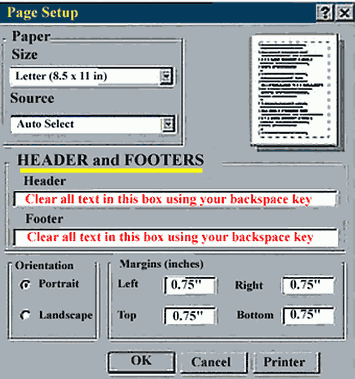
Note: To remove the printed url,, time, & date, you'll need to clear the header and footer boxes.
Remove all text and symbols in the boxes.
You can accomplish this by clicking in the box and using your backspace button.
(You may want to write the text down before you clear it,
in case you should want to restore the default settings)
Header &w&bPage &p of &P
Footer &u&b&d
These were the default settings for our Internet Explorer . You can
cut and paste these or enter them manually to restore the default print settings.
Click here if you need more detailed instructions on removing the
page address, time, & date from your printed items.
The next item to look at, is the printer additional
settings. Right click start (bottom left), select settings, then printer. Now click
the default printer, it will have a check mark on it. Next select printer, then select
properties. Here is a typical dialog box. this may contain info unique to your printer.
Follow your printer manufacturers' recommendation for these settings.
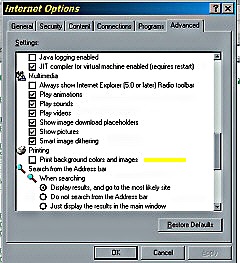
You do not need to print backgrounds at Printfree.com. Since that really
wastes ink, we've made ours white, making it unnecessary to either enable
or disable this feature.
Just the same we'll show you where it's found. In Internet
Explorer, right click tools, select internet options, select advanced, and in
the white box scroll down to printing. Check or un check the box as desired.
You will be glad to have turned this off the next time you print a page from a weather or news
site with a colored background. Printing colorful backgrounds looks impressive but really
wastes ink. Save your ink for something that needs to be more impressive than
today's weather report. (Unless you're a weatherman.)
 Click to enlarge in new window Click to enlarge in new window
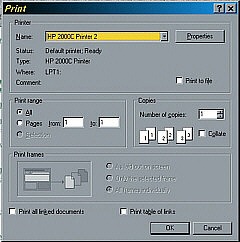
The next place to look is under the print set up.
From Internet Explorer, right click file, then select print. Here is the dialog box you will see.
 Click to enlarge in new window Click to enlarge in new window
You can select print all, or print page 1 of 1. You wont want to print links,
or linked documents, or you will get more than just the image on the screen.
Right clicking properties (upper right) will take you directly to your printer
settings for print quality, paper options, etc.
5 Be sure to use the print buttons and commands at the top of your web browser!! 5
Those new little icons that pop-up in late versions of some web browsers when you place your
mouse over images are for printing only the picture that the mouse is directly over.
At Printfree.com you'll want to print the whole page.
All items are designed to be printed as a portrait. Just like they are viewed
in your web browser. This is why our horizontal calendars are sideways.
Paper
The best paper to use for our ¼ fold greeting cards is the heavy card paper
found in stores. For our plain envelope cards, use the second best
paper which is any heavy, coated inkjet paper or plain heavy paper.
Everything else really depends on the quality you want. Most items other than the
greeting cards print nicely on normal print modes, with ordinary inkjet paper.
Considerations When Buying a Printer.
First you have to decide whether the quality, features, or cost are key issues with you.
Ink can be very expensive, having to reprint items can be even more expensive.
Some of the new multi-purpose machines are very useful. They allow you to make
color copies with the push of a button, fax, scan, print, and more.
Some inkjet lines have separate cartridges for individual colors.
These save money if you print a lot of one color, like red during Christmas or Valentine's Day.
On big consideration is the availability of cartridges. Some of the off brands become obsolete
quickly and aren't well supported by all office supply stores.
Driving an extra 10 miles can add up fast these days.
Here's a good tip for removing text with a browser called Av ant:
When printing with Av ant go to File>Print Preview with the card you
want to print in the current window. This will put the card in the
print preview window. From the Print Preview in Av ant Browser print
your card using the print button provided in the preview window.
| |
 Click to enlarge in new window
 Click to enlarge in new window